 Almaftuchin
 Microsoft Office 2024
Brand:
Checking..
SKU:
Checking..
Version:
Checking...
Operating System:
Windows
License Type:
Serial Key
Delivery:
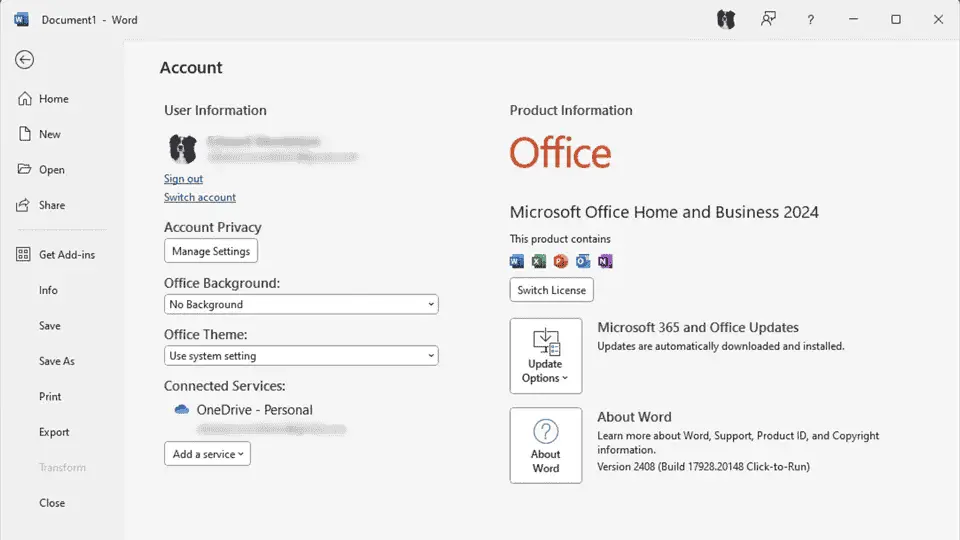
Screenshots:
Select License:
About Microsoft Office 2024
Microsoft Office 2024 is the latest version of Microsoft's office productivity suite, sold with a one-time purchase model (perpetual license). This means users only need to pay an upfront fee once without needing a monthly or annual subscription like Microsoft 365.
Key Features:
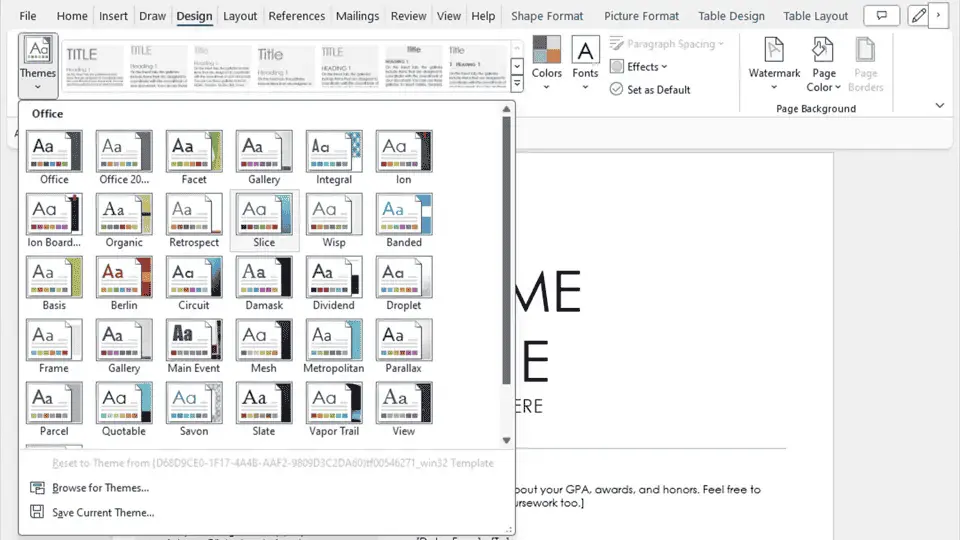
- Microsoft Word: For processing documents and text.
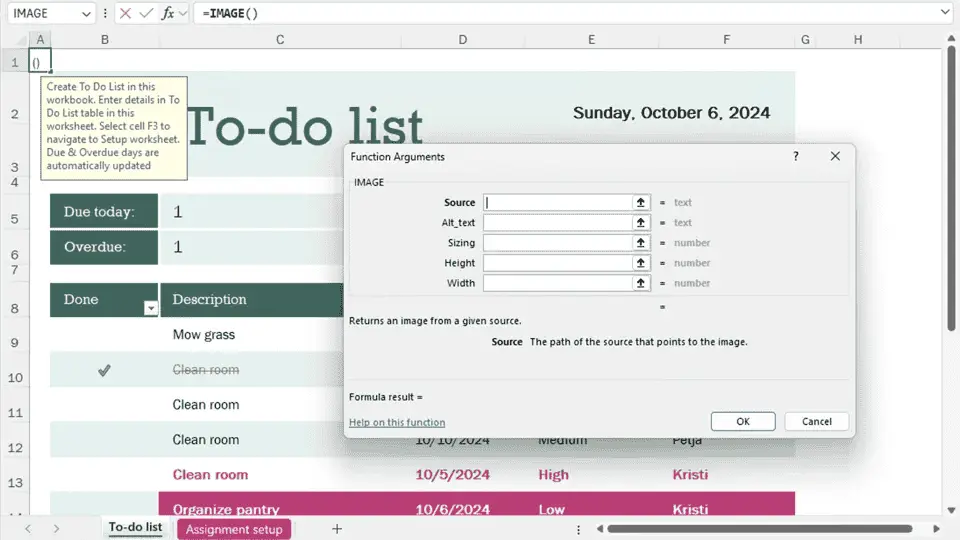
- Microsoft Excel: For processing data and numbers.
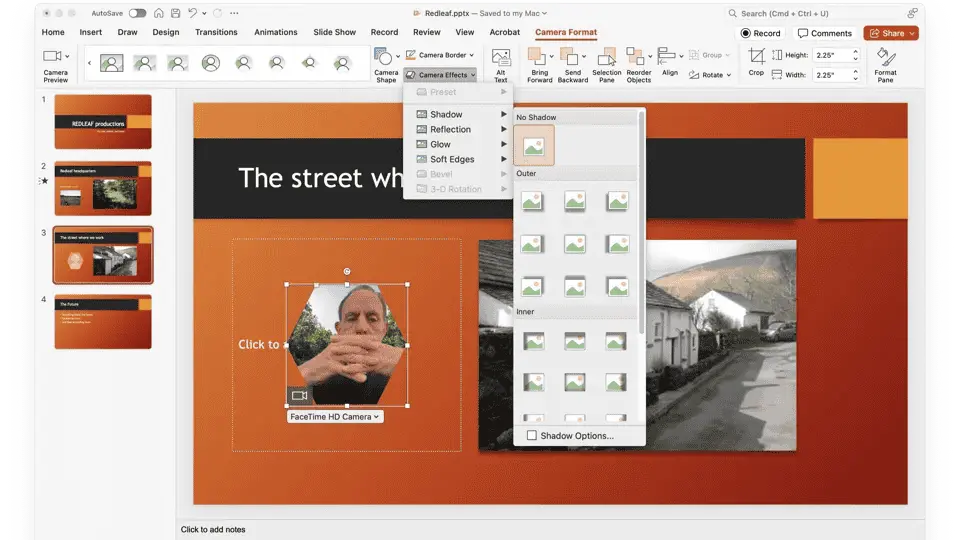
- Microsoft PowerPoint: For creating slide presentations.
- Microsoft OneNote: For taking digital notes.
- Microsoft Outlook: For managing email and calendars (available in the Home & Business edition).
Microsoft Office 2024 Activation Guide
Download Microsoft Office 2024:
| Language | 64bit | 32bit |
| ENGLISH | Download | Download |
| DEUTSCH | Download | Download |
| FRANÇAIS | Download | Download |
| ITALIANO | Download | Download |
| ESPAÑOL | Download | Download |
| PORTUGUES | Download | Download |
-
Receive Code
After purchase, you will receive your serial key via email.
-
Installation
You can install the software from the official Microsoft Office 2024 LTSC website or via the download links provided above.
-
Open Microsoft Office 2024
Open any Microsoft Office 2024 application such as Excel, Word, or PowerPoint.
- Click Account
- Enter Serial Key
- If the Activation Wizard appears, select "I want to activate the software by telephone"
- Click Next
-
Save Installation ID
The Installation ID will appear in the Activation Wizard window. Write down this Installation ID in Notepad or anywhere else, making sure no digits are missed or incorrect, and do not close the Activation Wizard window.
- Open >> https://visualsupport.microsoft.com/
- On the portal page, select "Proceed to Sign In"
- On the "Microsoft Product Activation" screen, select "Activate a Microsoft Product"
- Select "Microsoft Office"
- Select "Windows"
- Select "Office 2024"
-
Enter Installation ID
On the "Enter Installation ID" screen, enter the Installation ID you saved earlier, then click "Submit"
- If asked "How Many Computers", enter 0 and click "Submit". If this prompt does not appear, skip to the next step.
- If you entered the Installation ID correctly, a "Confirmation ID" will be displayed.
- Enter the "Confirmation ID" into the "Activation Wizard" window, then click "Next"
- If successful, you will receive a notification that your Office 2024 has been successfully activated.
- Click "I already activated" on the Microsoft page
- Done
Step 1
Step 2
Frequently Asked Questions
How long does the delivery process take?
Delivery will be processed immediately after payment is verified and during our store's working hours.
Can it be installed on Android, Mac, and iOS?
No, Microsoft Office 2024 only supports installation on Windows.
Do you provide usage tutorials?
No, we do not provide usage tutorials. Please visit the official website or search Google for more information.
What if I need installation help?
Our admin is ready to assist you via WhatsApp or email.
How long is the product warranty period?
This product comes with a 30-day warranty.
Is there a money-back guarantee?
Yes, we provide a 100% money-back guarantee if the product does not match what we sell. (Please read the Warranty Terms and Conditions for more details.)